-1.svg)
Add Pre-Header text to an email
Give your customers a quick summary of your email before they open it to help ensure they do open it!
September 15, 2025🏷️ Email campaigns and automations are unlocked on with the Marketing add-on.
Before you get started
We recommend reviewing the following help center guides before getting adding pre-header text into an email template:

Adding Pre-Header text to an email template:
Pre-Header text in Email Campaigns:
1. From your Marsello admin, go to Marketing > Campaigns > Email and complete one of the following steps to open the relevant campaign:
-
Click Create Email Campaign to begin a new campaign
-
Click Edit next to the campaign you wish to work on to update an existing draft
-
Navigate to Customer experience > Email templates to create a template campaign
2. Update your Campaign Settings and click Next Step
3. Once the campaign editor is open, click on the Body button

4. Under Email Settings, add your Pre-header text in the text box:

5. Click Save
Pre-Header text in Automations:
1. From your Marsello app admin, go to Marketing > Automations and complete one of the following steps to open the relevant Automation:
-
Click Create Automation to begin a new custom automation
-
Click Edit next to the automation you wish to work on to update an existing draft
2. Once you have the Automation open, locate the email(s) in the flow that needs to be updated and click the Pencil icon to edit

3. Once the specific email in the flow is open, click on the Body button.

4. Under Email Settings, add your Pre-header text in the text box:

5. Click Save
6. Continue these steps for all emails in the Automation flow

How it works – Your customers' experience
When your email arrives in your customers' inboxes, the first thing they will see is your subject line followed by your Pre-Header text:
Desktop view:

Mobile view:
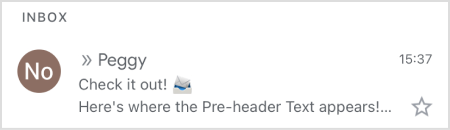
Depending on the email client, your customer may be able to see the full pre-header text.
In Gmail, the text gets cut off to fit on the customer's screen and the customer may not be able to view the full text.
Merchants also searched for: preheader, scre