-1.svg)
How do I add Marsello to my Lightspeed Retail (R-Series) sales screen?
Enable your team to access customer loyalty and marketing profiles directly from the POS sales screen. This guide walks you through how to add a custom Loyalty button on both Desktop and iPad (iOS).
April 13, 2026For Lightspeed Retail (R-Series) Merchants
Formerly known as Lightspeed Retail
Empower your team to seamlessly access customer loyalty and marketing profiles directly from the Lightspeed (R-Series) POS sales screen. In this guide, we’ll walk you through how to enable this feature and how to add your custom loyalty button on both Desktop and the iPad (iOS) App, ensuring a smooth and efficient in-store workflow.
Before you start
-
The Older Sales screen interface must be enabled to access 3rd-party apps
How do I add Marsello to your Lightspeed Retail (R-Series) POS Sales Screen?
Depending on which way you access Lightspeed R-Series, either via iPad or Desktop, you can access Marsello by doing the following steps:
Add Marsello on iPad (iOS)
Step 1: 📍Open your Lightspeed back-office admin
-
In the bottom navigation, tap Manager in the bottom navigation
-
Tap Settings

📝 Note: To access 3rd Party apps on Lightspeed R-Series, you must use the Older Sales screen interface.
Step 2: Create a Loyalty Button
1. Scroll to Advanced Setup → tap Custom Menus

2. Select the Register: Sale tab

3. Tap Add new button and enter:
-
Title: Loyalty
-
Type: Open WebPage
-
Color: Choose your brand color
-
Sort Order: Optional
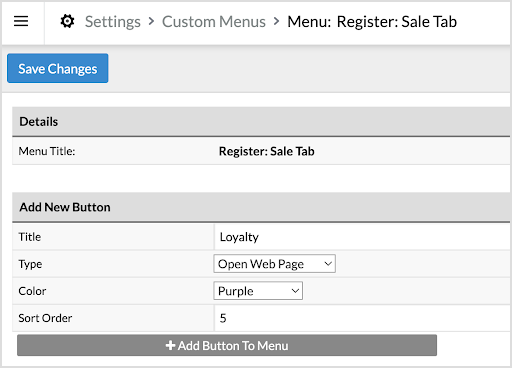
4. Tap Add button to menu
5. Tap Save changes You should now see your Loyalty Button listed as a menu option.

How do I add Marsello on desktop?
Step 1: 📍Open your Lightspeed back-office admin
-
Click Settings in the side navigation

Step 2: Create a Loyalty Button
1. Scroll to Advanced Setup → click Custom Menus

2. Select the Register: Sale tab

3. Click Add new button and enter:
-
Title: Loyalty
-
Type: Open WebPage
-
Color: Choose your brand color
-
Sort Order: Optional
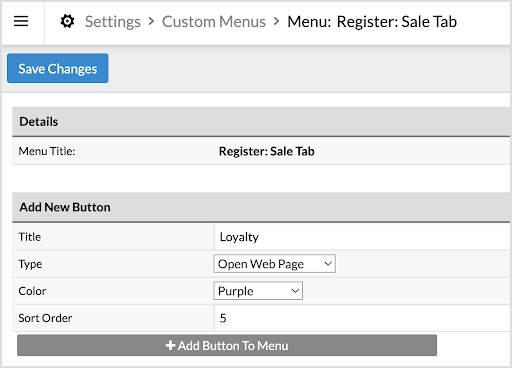
4. Click Add Button to Menu
5. Click Save Changes
6. Still on your R-Series menu, go to Buttons > Loyalty and click on the pencil icon.

This will open up the Details page where you will be able to add and include your Marsello URL under the URL field.
How do I add my Marsello URL (for iOS & Desktop)?
📍In your Marsello admin
Step 3: Get your Marsello URL
1. In your Marsello admin, go to: Settings > Connections> Sales platforms
2. Under the Lightspeed Retail (R-Series) connection you will see an orange banner outlining any outstanding tasks you need to complete. Select Lightspeed Retail (R-Series)
3. Expand the orange setup banner

4. Under Step 3, you will see your unique Marsello URL, select the clipboard icon to copy your Marsello URL.

📍In Lightspeed R-Series admin
Step 5: Add the URL to Lightspeed
1. In your Loyalty Button, next to URL field, paste your Marsello URL

⚠️ Important: Do not select “Open in New Tab.”
The Loyalty button must open within the same window in Lightspeed POS. If this option is enabled, the loyalty screen may not function correctly for staff at checkout.
2. Click Save Changes
Staff will now be able to access customers’ loyalty & marketing profile from the POS sales screen.

📍In your Marsello admin
Step 6: Confirm setup in Marsello
-
Click on the check box to indicate you have added your unique Marsello URL to your R-Series app admin.

This will confirm the URL has been added and close out the task on the Marsello side.

Your staff can now access customer loyalty and marketing profiles directly from the POS sales screen.
Brands also searched for: scre, in0s